Quick summary
Pictory AI turns scripts, ideas, articles, and even PowerPoint decks into edited videos with stock footage, captions, and AI voiceovers. This guide walks through the actual workflows, a rough script-to-length rule of thumb, and the 2026 minutes-based pricing tiers, so you can decide if it fits how you make videos.
This post contains a sponsored link. Can AI Do It may earn a commission. Editorial conclusions remain independent. Read the Affiliate Disclosure.
I've tested a lot of text-to-video tools for the channel, and most of them fall apart the moment you feed them something longer than a tweet. Pictory doesn't try to be clever. You give it a script, an idea, a URL, or even a PowerPoint file, and it builds a full video around it: stock footage, captions, an AI voice, the works. That's the whole pitch. No timeline to drag clips around on, no keyframes. Whether that's a feature or a limitation depends entirely on what you're making. Here's how it actually works in 2026, step by step, plus what it costs now that pricing has moved to a minutes-based model.
What Pictory Actually Does
Pictory is built around one idea: you shouldn't need editing skills to make a video. You feed it text, a URL, an audio file, a recording, or a slide deck, and its AI turns that into a produced video with matching visuals, captions, and narration. No software to download.
Under the hood, it's pulling from a library of over 18 million stock clips and more than 15,000 music tracks, plus AI voices in 20+ languages. You're not filming anything. You're directing an assembly line, and Pictory does the assembling.
There are four main entry points depending on what you're starting with: a full script, a rough idea, a URL or blog post, or existing audio and slides. There's also a fifth mode worth knowing about: editing raw footage by editing its transcript, which is genuinely useful if you record a lot of talking-head video and hate trimming silence by hand.
Workflow 1: Script to Video
This is the workflow I'd point most people to first, because it gives you the most control. From the home page, click Text to Video, then Script to Video. You'll land on an editor with a big box that just says: enter your script here.
If you don't have a script ready, there's an Ask AI to Write Script option that will draft one from a topic prompt. I'd still rewrite the opening line myself. AI-drafted hooks tend to sound like AI-drafted hooks 🤣.
Before you generate anything, you set a few preferences: aspect ratio (16:9 for YouTube, 9:16 for Reels and TikTok, 1:1 for feed posts), how scenes get split (by sentence or by line break), whether keywords get auto-highlighted, whether the AI auto-selects visuals per scene, and whether your saved Brand Kit (logo, fonts, colors) gets applied.
Click Generate Video and you'll hit a Choose Layout screen before the storyboard actually builds, where you pick a visual theme. Once you're in the script stage, there's a small toolbar of AI editing shortcuts: Optimize (adjusts tone or platform), Rephrase, Shorten, Lengthen, and Change Tone. I use Shorten constantly. It's easy to write a script that's 40% too long for the point you're actually making.
Workflow 2: Idea to Video, No Script Required
If you don't have a script at all, Idea to Video skips straight to a topic prompt. Select Text to Video, then Idea to Video, type in your topic, and Pictory builds tone, structure, and visuals from that alone.
You'll see a "Creating scenes…" loading message while it generates visuals and captions line by line. Once it's done, the AI Video Editor opens so you can preview, and you export straight from there, with the project auto-saved under My Projects.
Pictory's own guide has a few practical tips worth repeating: stick to one topic per video, use the Ask AI tools to tighten the script rather than accepting the first draft, match aspect ratio to the platform you're actually posting on, and always preview before you export. Captions drifting out of sync with visuals is a real failure mode, not a hypothetical one.
Workflow 3: URL, Audio, and PPT to Video
URL to Video takes a blog post or article link and turns it into a video with AI-generated visuals, an avatar option, captions, and narration. It's a fast way to repurpose written content you've already published without writing a second script from scratch.
Audio to Video does the same thing starting from a podcast episode or voice recording, and PPT to Video takes an existing slide deck and converts it the same way. If you already have a webinar recording or a stack of old presentation slides sitting unused, this is the workflow that gets the most mileage out of content you've already made.
How the Matching Actually Works, and How Long to Write
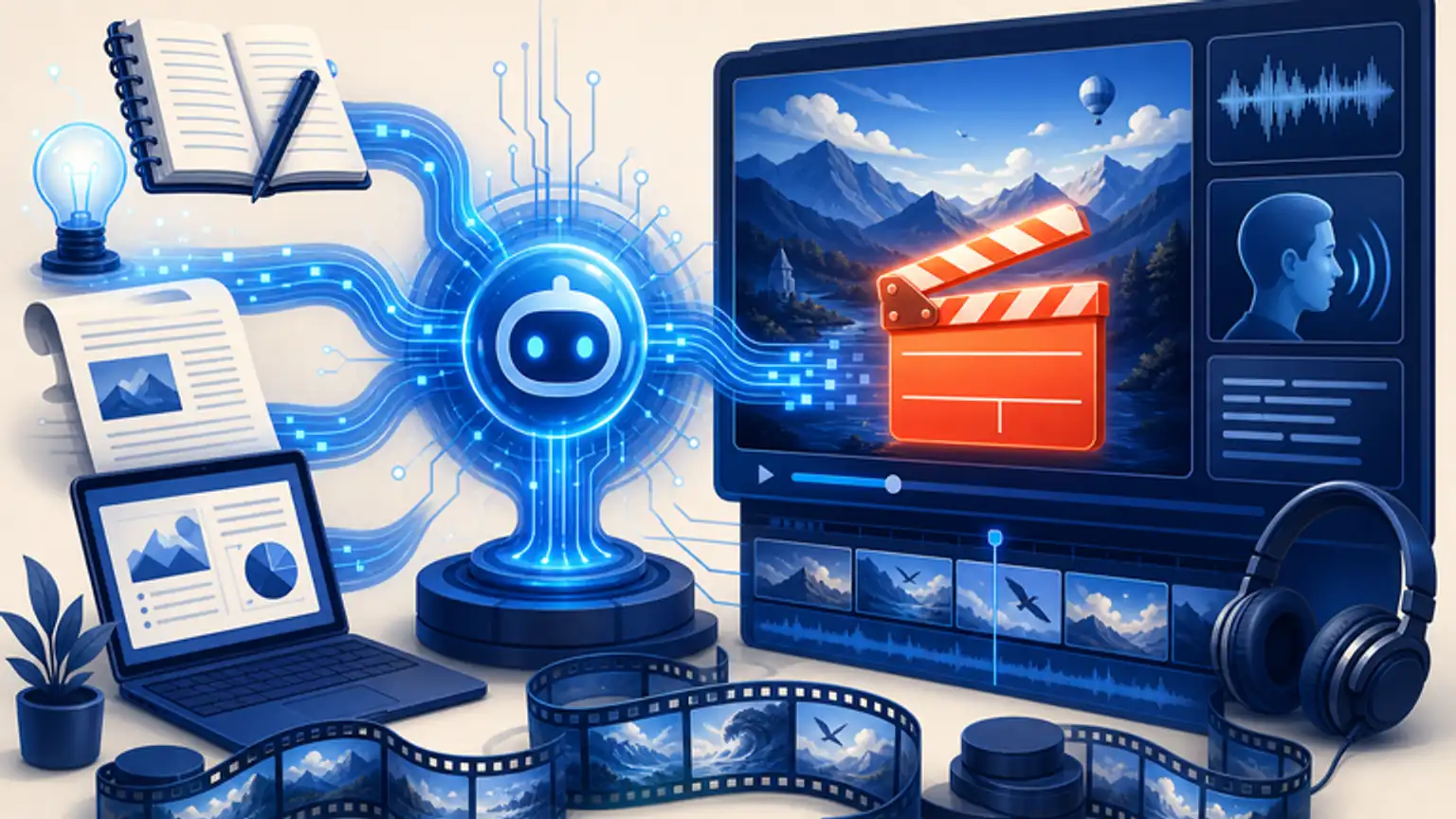
Here's the mechanic behind all of it: you paste text, Pictory breaks it into scenes, matches each line to stock footage from that 18 million-asset library, and lays an AI voiceover on top.
For planning script length, there's a genuinely useful rule of thumb here: about 150 words of script maps to roughly 60 seconds of finished video. A tight ad script runs 15 to 30 seconds. An explainer can run a minute or more. If you're writing for a specific runtime, count your words first.
2026 Pricing: What Changed
Pricing moved to a minutes-based quota model instead of a flat per-video or unlimited plan. Four tiers exist for 2026: Starter at $25/month (billed annually) for 200 minutes, Professional at $35/month for 600 minutes plus generative AI features, Teams at $119/month with collaboration tools, and Enterprise at custom pricing.
That range alone tells you this isn't a casual $10 tool anymore. Monthly billing costs 40 to 70% more than annual, so the annual commitment is effectively the only sensible option if you're using this seriously (pay attention to the word IF).
Generative AI image and video credits scale by tier too: 50 credits on Starter, jumping to 500 on Professional. A 3-minute social clip and a 20-minute tutorial eat very different amounts of your monthly minutes, so your actual usable output depends heavily on how long your videos run, not just the plan name.
Two add-ons matter mostly at the Starter tier: Getty Images premium visuals and ElevenLabs AI voiceovers, each $8/month annual or $10/month monthly. Starter is capped at 60 voice minutes a month, while Professional and Teams already bundle in 120+ and 240+ voice minutes plus 10,000+ music tracks and the full 18 million stock asset library. A free tier exists for testing, but it caps output at 720p with a watermark, so it's not something you'd ever ship.
Who Pictory Actually Fits
Pictory is built for people turning written content into video fast: bloggers repurposing articles, marketers producing social clips on a schedule, educators building training material from existing scripts or slides.
It's not built for frame-by-frame control. If you want to hand-place every cut like a film editor, you'll hit the ceiling of what Pictory offers pretty quickly. Its whole value is speed and automation over precision, and it's honest about that tradeoff rather than pretending to be a full editing suite.